The connector is read-only. It can look things up in your weddings, but it can’t send messages, change guests, change RSVPs, spend credits, or make payments. For all of those, use the Weddingkart app.
Read-only access — you can only query your weddings, you cannot edit, hence it’s safe. No messages go to guests, nothing in your wedding changes, and no credits are spent.
The connector URL
Every setup below asks for the same address:What you can ask
The connector can look up the following for every wedding you are on:- Your weddings — a list of the weddings you are on, and your role on each one (for example Admin, Member, or View Only).
- Guest totals and RSVP split — how many guests a wedding has, and how many have said yes, no, maybe, or haven’t answered.
- Guest lists with filters — list guests and filter them by RSVP (yes, no, not answered, maybe), by group, by name, by whether they have uploaded a travel ticket, and by whether they have uploaded an ID card. Guest phone numbers are included only if you ask for them.
- Groups — the wedding’s guest groups and how many guests are in each.
- Events — the wedding’s events (for example Haldi, Mehendi, Sangeet, Wedding, Reception) and who can see each event.
- Guests of one event — the guests invited to a particular event.
- RSVP change history — who changed their RSVP, what it changed from and to, when, and how the change was made: through the WhatsApp bot, in the app, or on a voice call.
- Travel arrivals and departures — who arrives or leaves on a given date, grouped by airport or railway station.
- How-to answers — how to do something in Weddingkart, answered from Weddingkart’s approved help content.
- Current prices for that wedding — the assistant fetches the current price of a feature for that wedding live from Weddingkart at the moment you ask. Prices are never taken from these docs. To compare plans, see weddingkart.co/pricing.
What it can’t do
The connector cannot change anything in Weddingkart. It cannot:- Send WhatsApp messages or announcements to guests
- Add, edit, or delete guests
- Change anyone’s RSVP
- Spend credits
- Make payments
Who can see what
The connector shows you exactly what the Weddingkart app would show you, and nothing more:- You only see weddings you are on. If you aren’t on a wedding’s team, the connector can’t read it. To get access, ask an Admin to add you — see Team Collaboration.
- If you’re removed from a wedding in the app, the connector stops showing that wedding too.
Set up in Claude
1
Open Connectors
In Claude, open Customize → Connectors. Click + Add, then Add custom connector.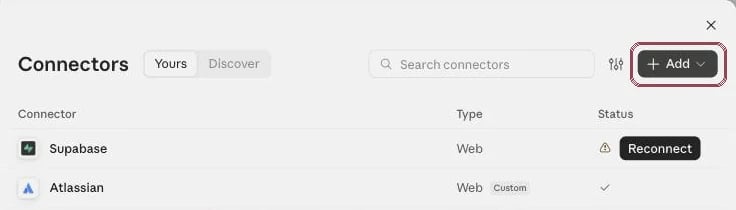
2
Name it and paste the URL
Enter the name Weddingkart and the URL 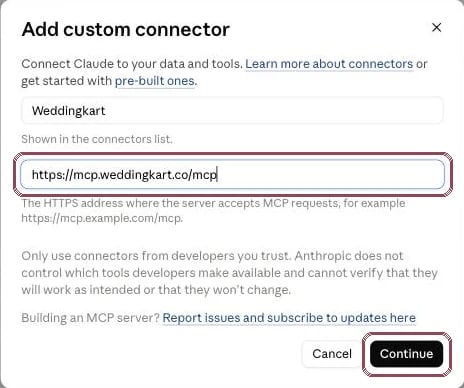
https://mcp.weddingkart.co/mcp. Click Continue.3
Keep the detected settings
Claude detects Sign in now and Register automatically by itself. Leave them as they are and click Add.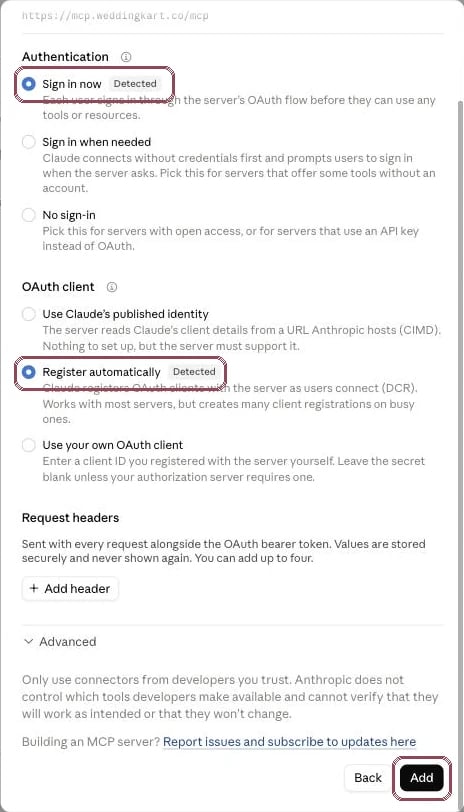
4
Enter your mobile number
The Weddingkart sign-in window opens (if it doesn’t, click Connect next to Weddingkart). Enter the mobile number you use with Weddingkart. India (+91) is selected by default. For a number from another country, pick the country from the flag menu. Click Send OTP.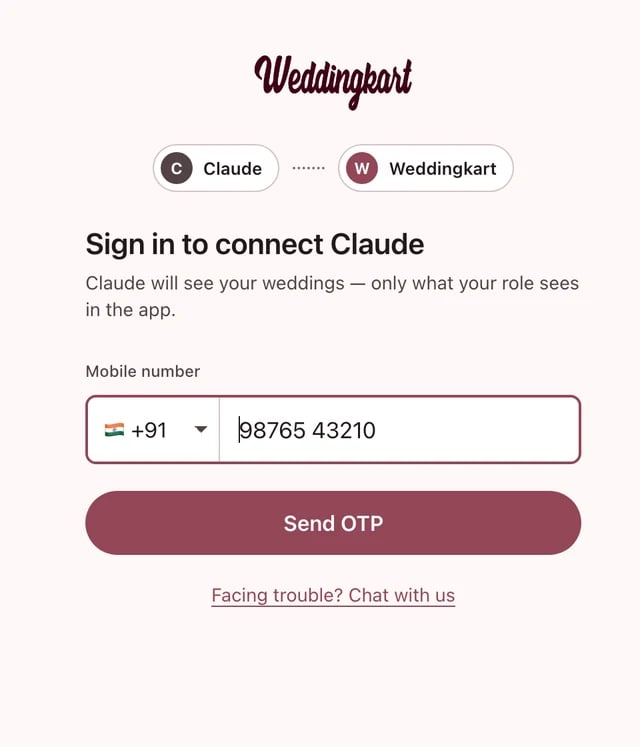
5
Enter the OTP
The OTP is sent to you on WhatsApp or by SMS. Enter it and click Verify. Wrong number? Click Change number. No OTP? Click Resend OTP.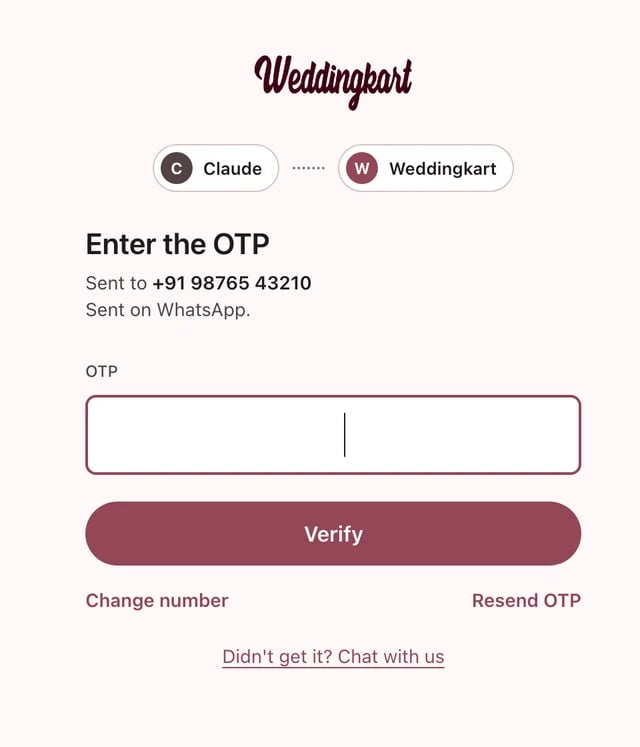
6
Review and allow
The next screen lists what the connector can and can’t do. Read it and click Allow. You’re returned to Claude, and the connector shows as connected.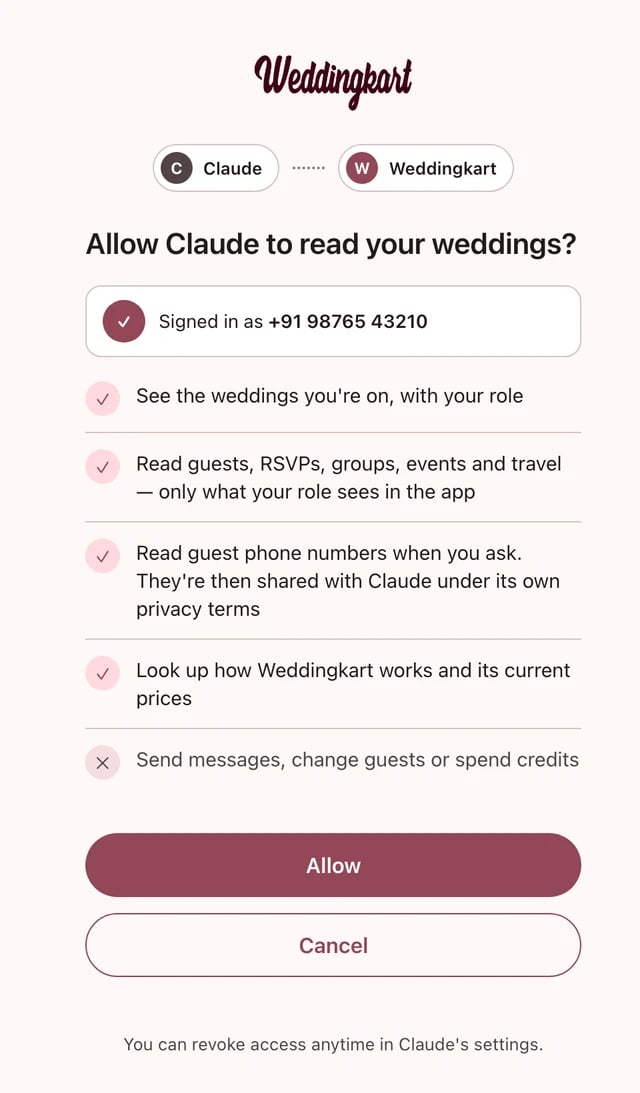
7
Optional: stop the approval prompts
On the Weddingkart connector page, set the tools to Always allow so Claude doesn’t ask before each lookup. Every Weddingkart tool is read-only.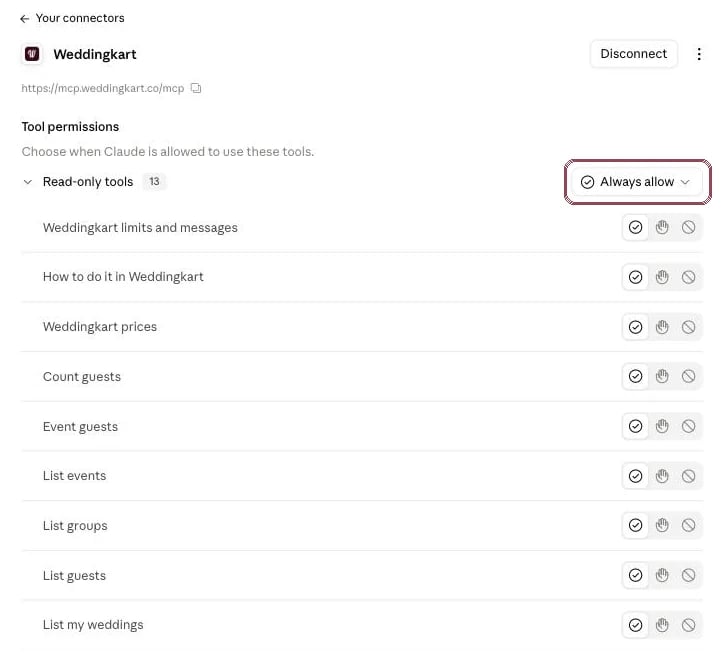
8
Switch it on in a chat
In a new chat, click + → Connectors and make sure Weddingkart is on.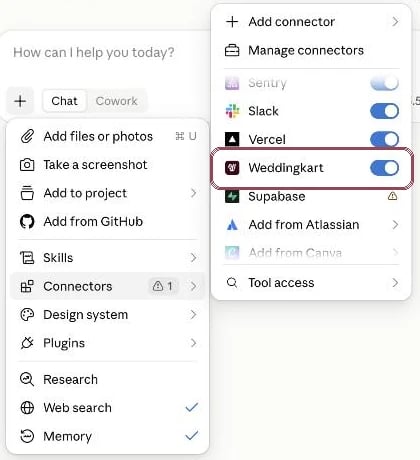
9
Try it
Ask “list my weddings”, then ask about guests, RSVPs, events or travel.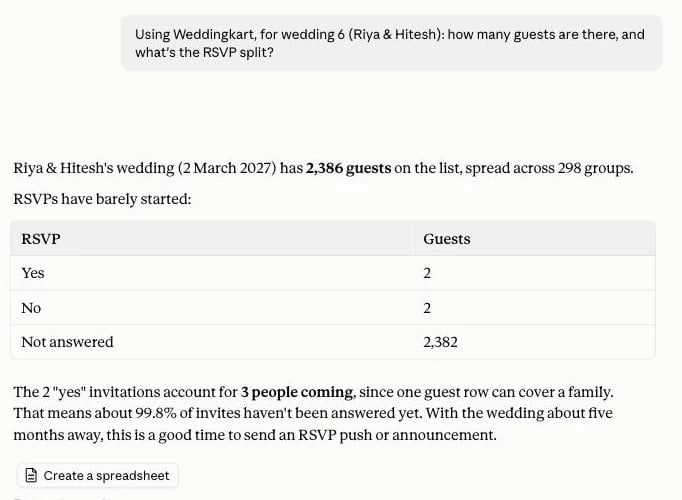
Set up in Claude Code (for developers)
If you use Claude Code in a terminal, add the connector with one command:/mcp inside Claude Code, choose weddingkart, and pick Authenticate. Your browser opens the Weddingkart sign-in page. Sign in with your phone number and OTP, and click Allow.
Set up in ChatGPT
1
Open Plugins
In ChatGPT, open Plugins in the left sidebar. Click Add (top right), then Create custom MCP server.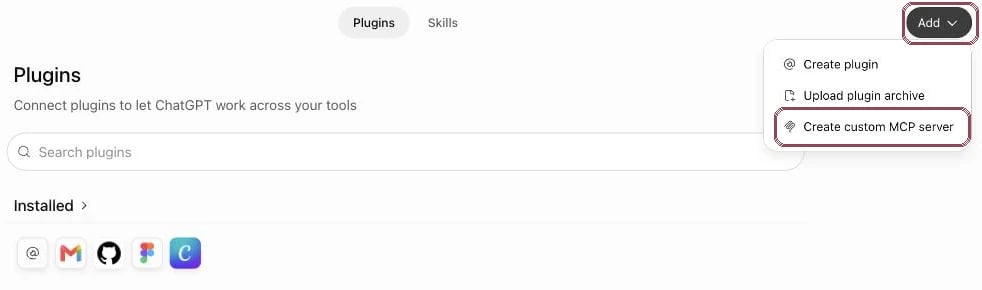
2
Fill in the connector
Enter the name Weddingkart and the URL 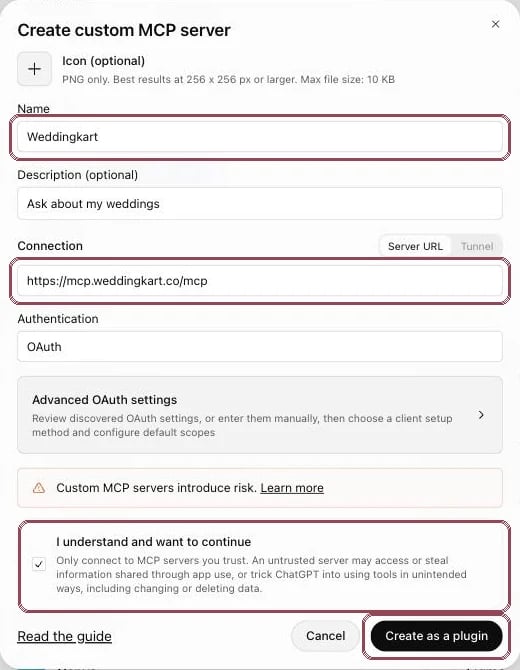
https://mcp.weddingkart.co/mcp. Keep OAuth as the authentication. Tick I understand and want to continue and click Create as a plugin.3
Enter your mobile number
The Weddingkart sign-in window opens. Enter your mobile number and click Send OTP.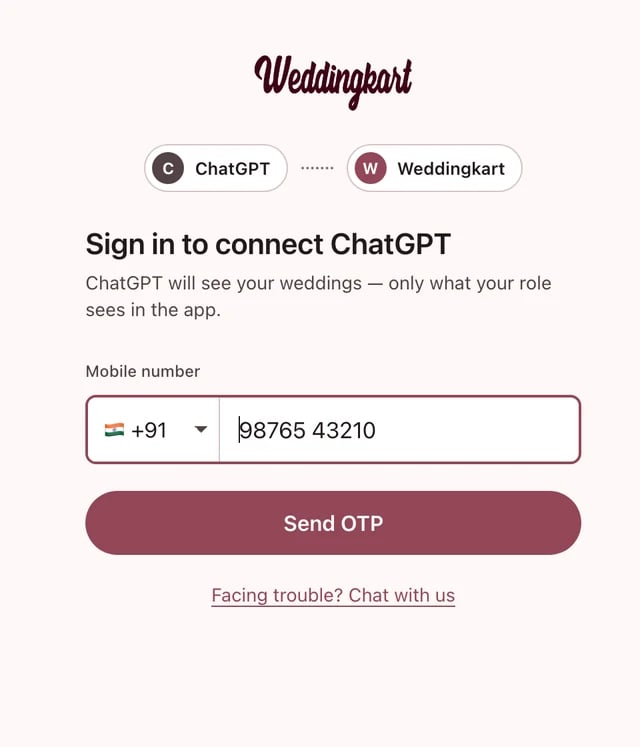
4
Enter the OTP
Enter the OTP you receive on WhatsApp or SMS and click Verify.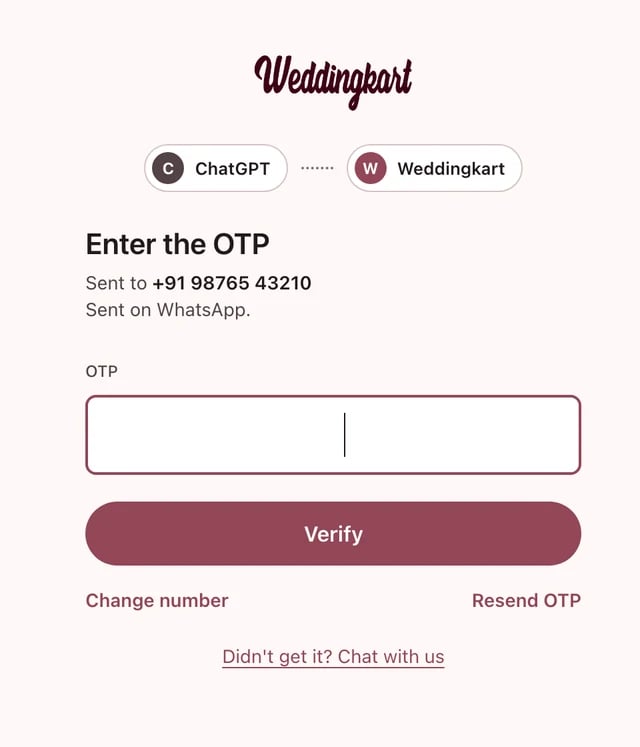
5
Allow
Review what the connector can and can’t do, and click Allow.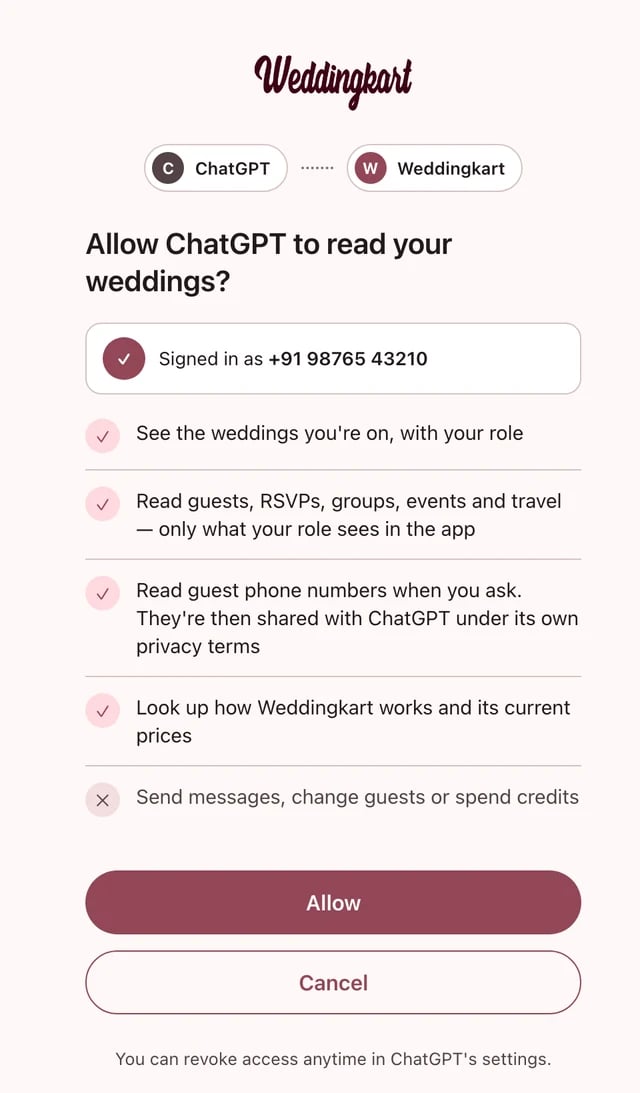
6
Pick Weddingkart in a chat
In a new chat, click + and pick Weddingkart.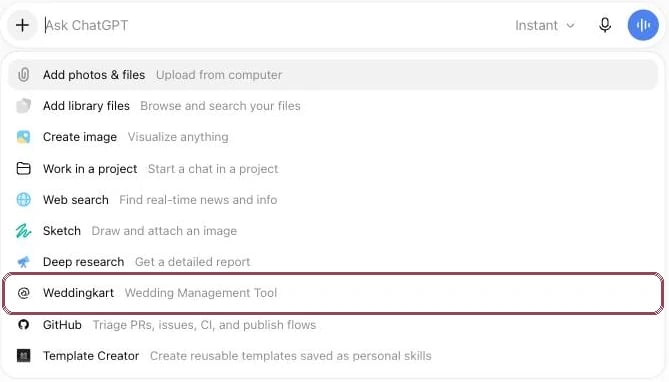
7
Ask
Ask about your guests, RSVPs, events or travel. ChatGPT answers from your live wedding data.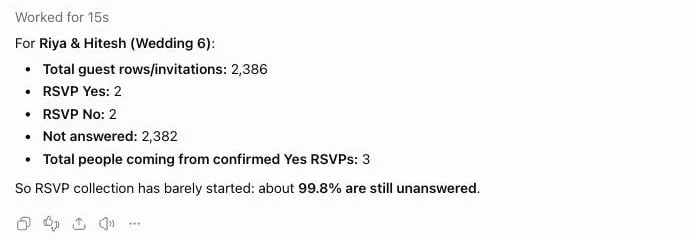
We tested this on ChatGPT Plus. If you don’t see Create custom MCP server under Plugins → Add, turn on Developer mode in Settings → Plugins. If that is missing too, your plan or workspace admin doesn’t allow custom connectors.
Stuck? Chat with us on WhatsApp
Message Weddingkart support and we’ll set up the connector with you.
Sign-in tips
- Typed the wrong number? Tap Change number on the OTP screen. Your number stays filled in so you can correct it.
- Didn’t get the OTP? Tap Resend OTP. Check both WhatsApp and SMS.
- Entered the wrong OTP? Just type it again.
- Indian numbers must be 10 digits.
- Still stuck? Tap Facing trouble? Chat with us on the sign-in page to reach Weddingkart support on WhatsApp.
Example questions
Once connected, ask in plain English. Name the wedding if you are on more than one. Some ideas:- “Who hasn’t RSVP’d for the sangeet?”
- “How many guests land in Udaipur on the 12th, by airport?”
- “Which guests changed their RSVP to no this week?”
- “How many people are coming from the bride’s side?”
- “Which events is the Mehta family invited to?”
- “Which guests still haven’t uploaded their ID card?”
- “Who is leaving from Jaipur station on the 14th?”
- “Give me the phone numbers of guests who haven’t answered.” (Phone numbers are shared only when you ask, like here.)
- “How do I send an RSVP reminder?”
- “What does an AI call cost for this wedding?” (Answered live from Weddingkart for that wedding, not from these docs.)
Privacy and security
- Sign-in is secure. The connector uses OAuth, the standard sign-in method for connecting apps, with your phone number and an OTP.
- Access expires. Each access token lasts 1 hour and is refreshed automatically for up to 30 days. After that, you sign in again.
- You can revoke access at any time — see Disconnect.
- Every request is logged by Weddingkart.
- Daily data limits apply to each connection, to protect your guests’ data.
- Guest phone numbers are shared with the AI assistant only when you ask for them. Once shared, they are handled under that assistant’s own privacy terms (Anthropic for Claude, OpenAI for ChatGPT).
Disconnect
- Claude: open Customize → Connectors and remove the Weddingkart connector.
- ChatGPT: open Settings → Plugins, click Weddingkart, then Uninstall.
- To revoke every connection at once (for example, if you lost a device), contact Weddingkart support.
Troubleshooting
Couldn't check the server / 404
Couldn't check the server / 404
The connector URL is missing
/mcp at the end. Remove the connector and add it again with the full address https://mcp.weddingkart.co/mcp."You don't have access to wedding N"
"You don't have access to wedding N"
You aren’t on that wedding’s team, so the connector can’t read it. Ask one of the wedding’s Admins to add you in the app. See Team Collaboration.
"Can't see this in the Weddingkart app either"
"Can't see this in the Weddingkart app either"
Your role on the wedding doesn’t include that screen in the app, so the connector won’t show it either. For example, on-ground staff only get how-to answers. Ask an Admin if you need a different access role.
"Daily limit reached"
"Daily limit reached"
Your connection has hit its daily data limit. Ask a narrower question (for example, one event or one date instead of the whole guest list), or try again tomorrow.
"Couldn't read that right now"
"Couldn't read that right now"
A temporary problem. Wait a moment and ask again.
Sign-in or OTP problems
Sign-in or OTP problems
See Sign-in tips. If you still can’t sign in, tap Facing trouble? Chat with us on the sign-in page.
FAQ
Is it safe?
Is it safe?
Yes. You sign in with your own phone number and OTP through OAuth, and you approve access by clicking Allow. The connector is read-only, shows only the weddings you are on, and shows only what your role can see in the app. Access tokens expire and refresh automatically, every request is logged, and you can disconnect at any time. Guest phone numbers are shared with the assistant only when you ask for them.
Does it cost extra?
Does it cost extra?
The Weddingkart connector is included with Weddingkart. Your Claude or ChatGPT subscription is separate and is paid to Anthropic or OpenAI. For Weddingkart plans, see weddingkart.co/pricing.
Can it message my guests?
Can it message my guests?
No. The connector can’t send WhatsApp messages or announcements, and it can’t change guests or RSVPs. To message guests, use the Weddingkart app.
Which AI assistants does it work with?
Which AI assistants does it work with?
Claude (including Claude Code) and ChatGPT today. It also works with any other AI assistant that supports MCP connectors with OAuth sign-in — use the same URL,
https://mcp.weddingkart.co/mcp.Do I need a separate Weddingkart account?
Do I need a separate Weddingkart account?
No. Sign in with the same phone number you use in the Weddingkart app. The connector shows the same weddings you see in the app.